

Description
Download Mercury Messenger – Free Java‑Based MSN Alternative
Overview
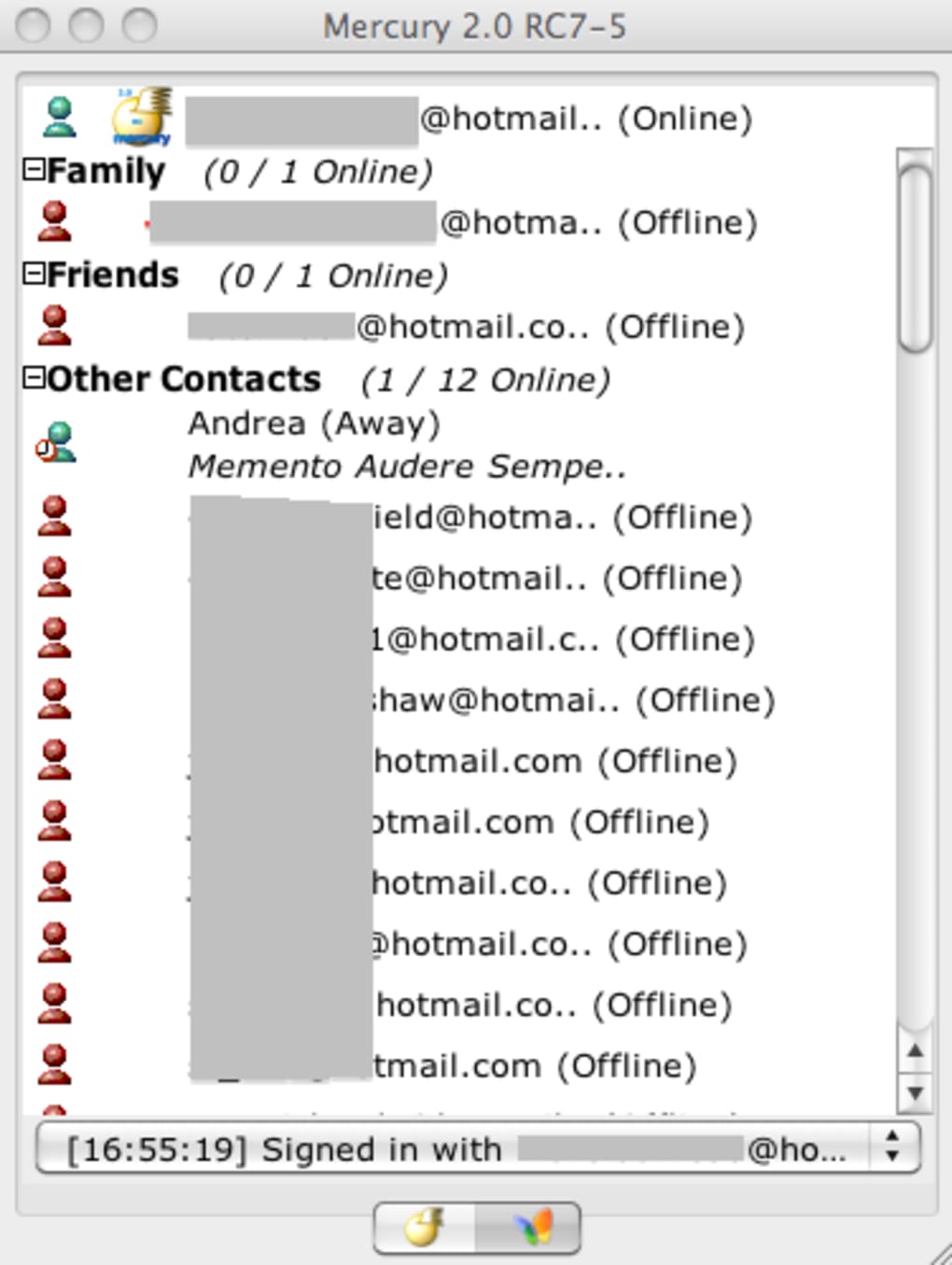
Mercury Messenger is a Java‑based instant‑messaging client that mimics the classic look and feel of the original MSN Messenger while offering a handful of modern twists. Developed as a free alternative to Microsoft’s discontinued service, Mercury lets users sign in with their Windows Live, Hotmail, or Outlook.com accounts and instantly join the conversation with friends, family, or colleagues. Despite being built on the Java platform, the application remains surprisingly lightweight, requiring only a modest amount of RAM and CPU resources, which makes it suitable for older hardware or low‑spec laptops. The user interface retains the nostalgic layout of MSN—contact list on the left, chat window on the right—yet it adds a few hidden gems such as RSS feed integration, tabbed multiple‑account support, and skinning capabilities that let you personalize the look. While the client does not receive frequent updates, its stability and feature set have kept a small but loyal community active for years. If you miss the simplicity of MSN Messenger but still want a secure, free, and cross‑platform solution, Mercury Messenger is worth a try.
Key Features
- Cross‑Platform Compatibility: Runs on any operating system with a Java Runtime Environment (JRE) – Windows, macOS, and Linux.
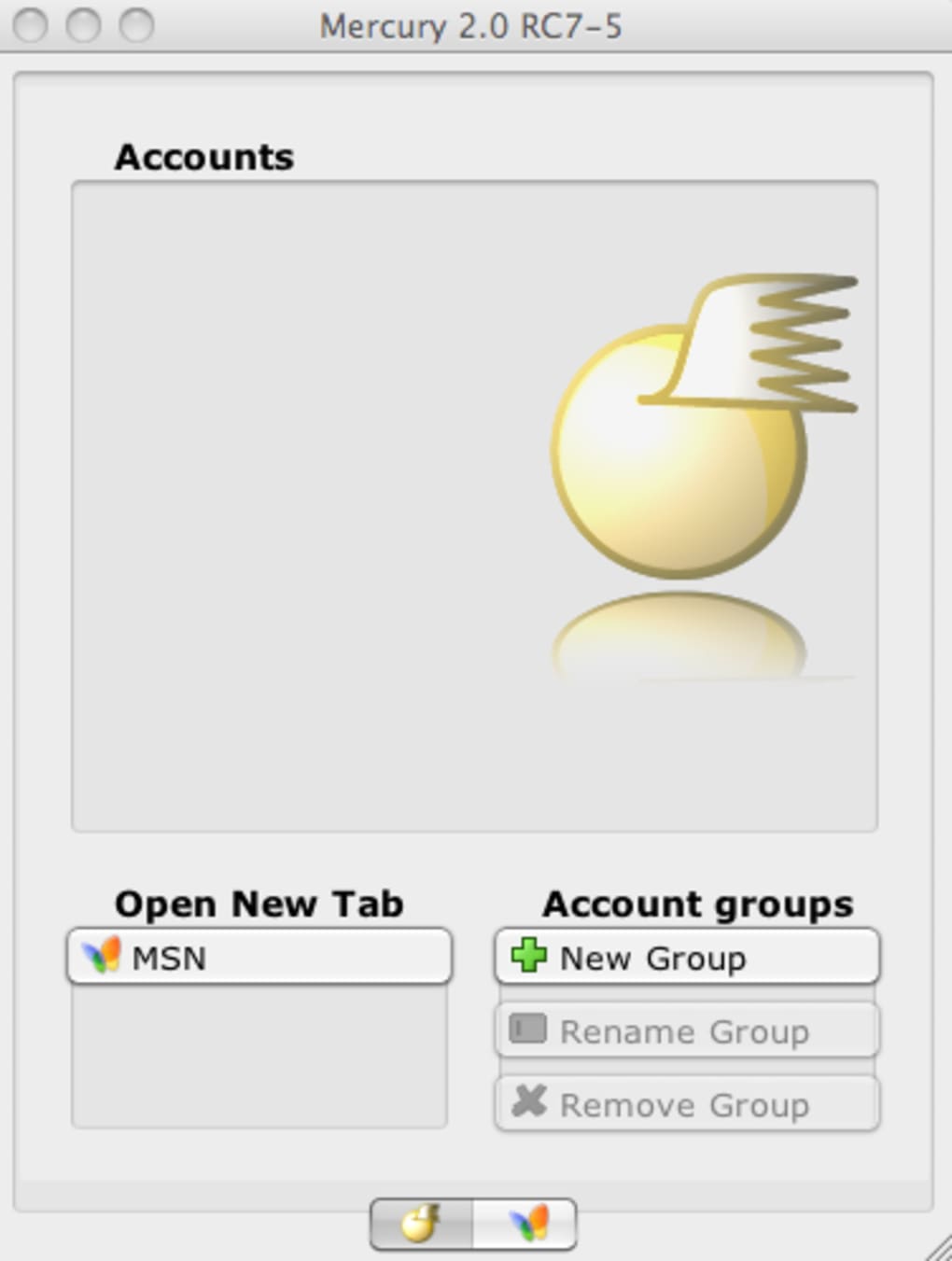
- Multiple Account Management: Tabbed interface lets you stay signed in to several Windows Live accounts simultaneously.
- RSS Feed Integration: Unique to Mercury, you can add and preview RSS feeds directly within the messenger window.
- Standard IM Functions: Send instant messages, emoticons, files, and even start webcam chats just like the original MSN client.
- Contact Grouping & Custom Skins: Organize friends into groups and apply downloadable skins for a fresh visual experience.
- Lightweight Java Engine: Requires only a small JRE footprint, making it faster to start than many modern chat apps.
- Secure Login: Uses Microsoft’s OAuth authentication, so your credentials are never stored locally.
Installation & Usage Instructions
Getting Mercury Messenger up and running is straightforward, even for users with limited technical experience. Follow these steps to download, install, and start chatting:
- Download the Installer: Visit the official Mercury Messenger website and click the “Download for Windows/macOS/Linux” button. The file is a compressed
.ziparchive containing themercury.jarexecutable and a briefREADME.txt. - Install Java Runtime Environment (JRE): If you don’t already have Java installed, download the latest JRE from Oracle or adopt OpenJDK. Mercury requires Java 8 or newer; most modern systems already meet this requirement.
- Extract the Archive: Unzip the downloaded file to a folder of your choice (e.g.,
C:\Program Files\MercuryMessengeron Windows). No additional installation wizard is needed. - Launch the Application: Double‑click
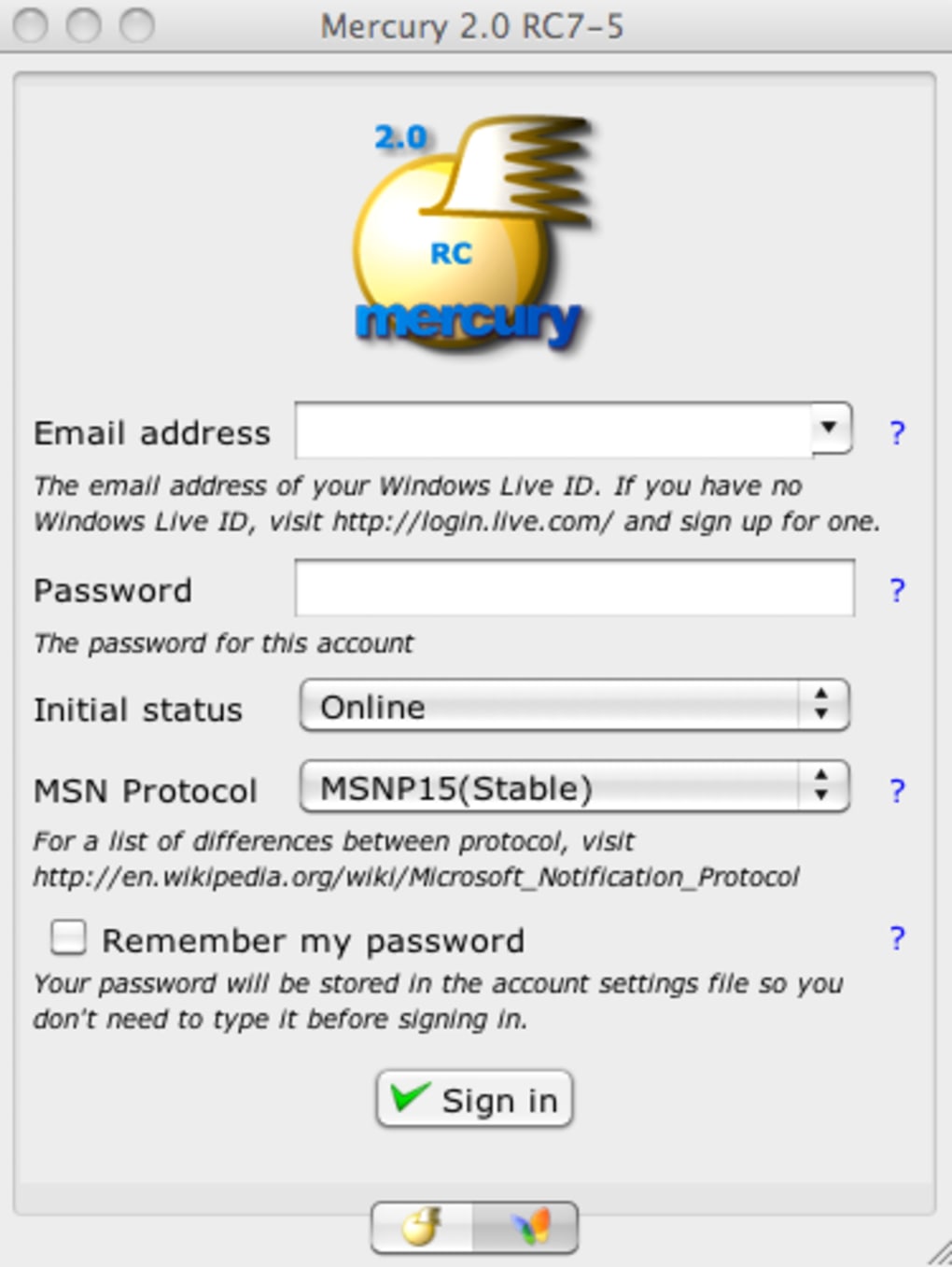
mercury.jaror run the commandjava -jar mercury.jarfrom a terminal/command prompt. The client will open with a clean login screen. - Sign In with Your Microsoft Account: Enter your Windows Live, Hotmail, or Outlook.com email address and password. Mercury uses Microsoft’s OAuth flow, so you may be redirected to a secure Microsoft login page before returning to the messenger.
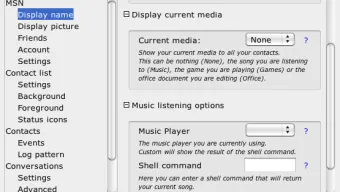
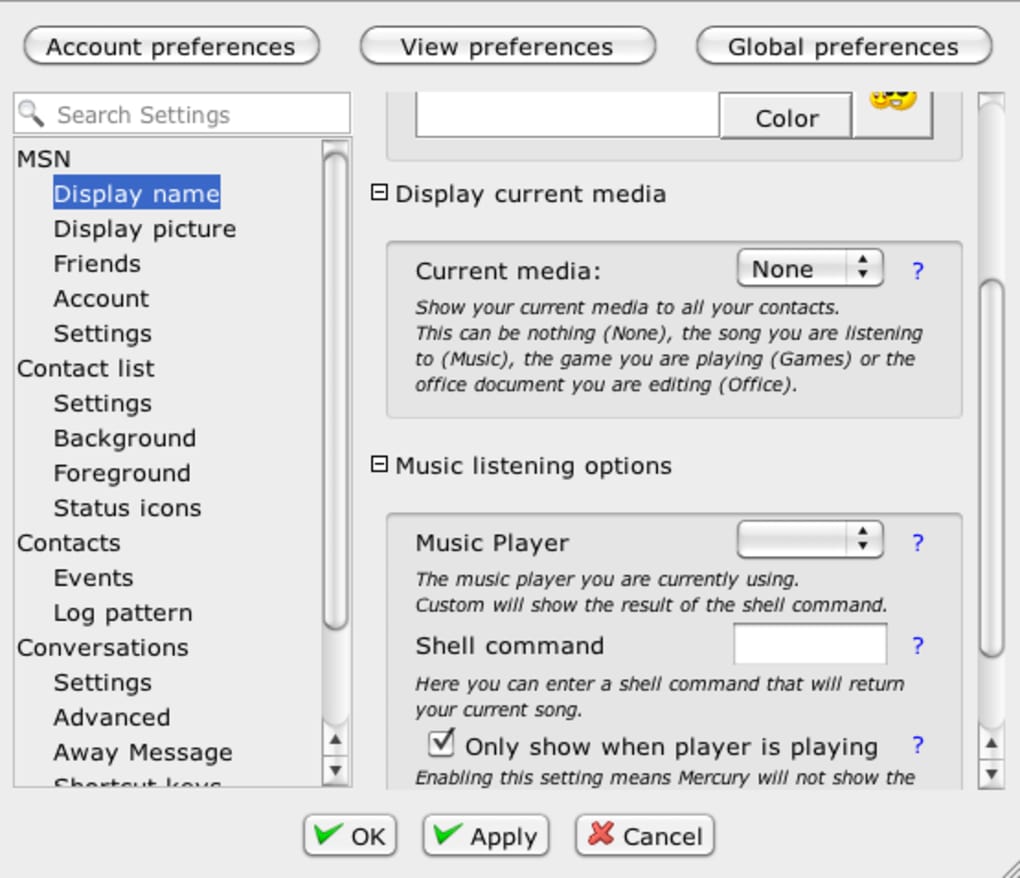
- Configure Settings: Once logged in, navigate to the Options menu. Here you can enable RSS feeds, choose a skin, set file‑transfer directories, and adjust notification preferences.
- Start Chatting: Drag contacts from your list into the chat area, type a message, and press Enter. You can also right‑click a contact to send files, initiate a webcam session, or add them to a custom group.
Because Mercury is Java‑based, the same installer works across all major operating systems. If you run into any issues, the community forum provides a troubleshooting guide that covers common errors such as missing Java plugins or firewall blocks.
Compatibility, Pros & Cons
Supported Platforms: Windows 7/8/10/11, macOS 10.12+ (Catalina and later), and major Linux distributions (Ubuntu, Fedora, Debian) that have a compatible Java Runtime Environment installed. The Java foundation ensures that Mercury Messenger will continue to function even as newer operating systems emerge, provided the JRE remains supported.
Pros
- Free to download and use – no hidden subscription fees.
- Lightweight and fast startup compared to heavyweight chat suites.
- Unique RSS feed viewer adds a mini‑newsreader to your messenger.
- Multiple account support via tabbed interface.
- Highly customizable with community‑made skins.
- Secure OAuth login means credentials are never stored locally.
Cons
- Interface feels dated and can be unintuitive for new users.
- Relies on Java, which some users consider a security risk if not kept up‑to‑date.
- No native mobile apps – strictly a desktop client.
- Lacks the newest features found in modern messaging platforms (e.g., integrated video conferencing, stickers).
- Occasional UI glitches when many tabs/accounts are open.
Frequently Asked Questions
Is Mercury Messenger still safe to use in 2025?
Yes. Mercury Messenger uses Microsoft’s OAuth authentication, which means your password never touches the Mercury servers. The only security dependency is the Java Runtime Environment, so keeping Java up‑to‑date is essential for maintaining a safe experience.
Can I use Mercury Messenger on a Mac without installing Java?
No. Mercury is built on Java, so a compatible JRE is required on any operating system, including macOS. You can download the latest OpenJDK version for free from the official website.
How do I add an RSS feed to the messenger?
Open the Options menu, select RSS Feeds, and click Add New Feed. Paste the feed URL (e.g., https://example.com/rss) and give it a name. The feed will appear as a new tab where you can preview headlines and click through to the full article.
Does Mercury Messenger support file transfers larger than 2 GB?
File transfer size is limited by the underlying MSN/Windows Live protocol, which caps transfers at roughly 2 GB. For larger files, consider using a cloud‑storage link instead of a direct transfer.
Can I run Mercury Messenger in a portable mode on a USB drive?
Yes. Since Mercury is a single .jar file, you can copy the entire extracted folder onto a USB stick, install a portable Java runtime, and launch the client directly without writing to the host PC’s registry.
Final Verdict & Call to Action
Mercury Messenger occupies a niche that few modern apps target: a lightweight, free, and nostalgically familiar instant‑messaging client that still talks to Microsoft’s legacy network. Its standout features—RSS integration and multiple‑account tabs—provide added value beyond simple text chat. However, the dated UI and reliance on Java may deter users who prioritize sleek design or native mobile support. If you’re looking for a secure, desktop‑only messenger that works across Windows, macOS, and Linux without a subscription, Mercury is a solid choice. Download it today, apply a fresh skin, and rediscover the charm of classic instant messaging.
Click here to download Mercury Messenger for free and join the community of users who still enjoy a simple, no‑frills chat experience.
Guides & Tutorials for Mercury Messenger
How to install Mercury Messenger
- Click the Preview / Download button above.
- Once redirected, accept the terms and click Install.
- Wait for the Mercury Messenger download to finish on your device.
How to use Mercury Messenger
This software is primarily used for its core features described above. Open the app after installation to explore its capabilities.
User Reviews for Mercury Messenger 0
No reviews found





.webp)